Developer handoff - Verify the report date filter
Contents
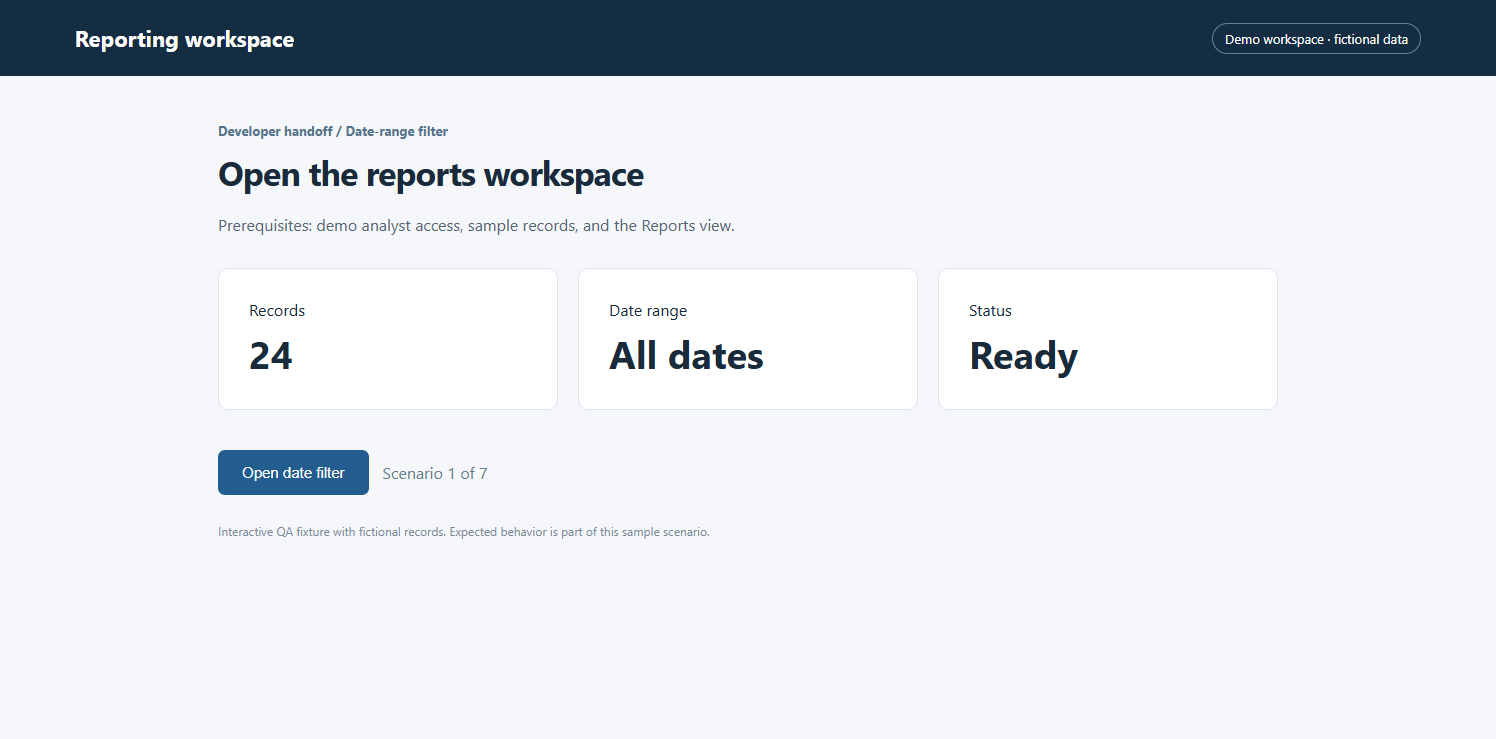
- Open the reports workspace – Navigate to: Open the reports workspace
- QA checklist and expected results – Markdown Document
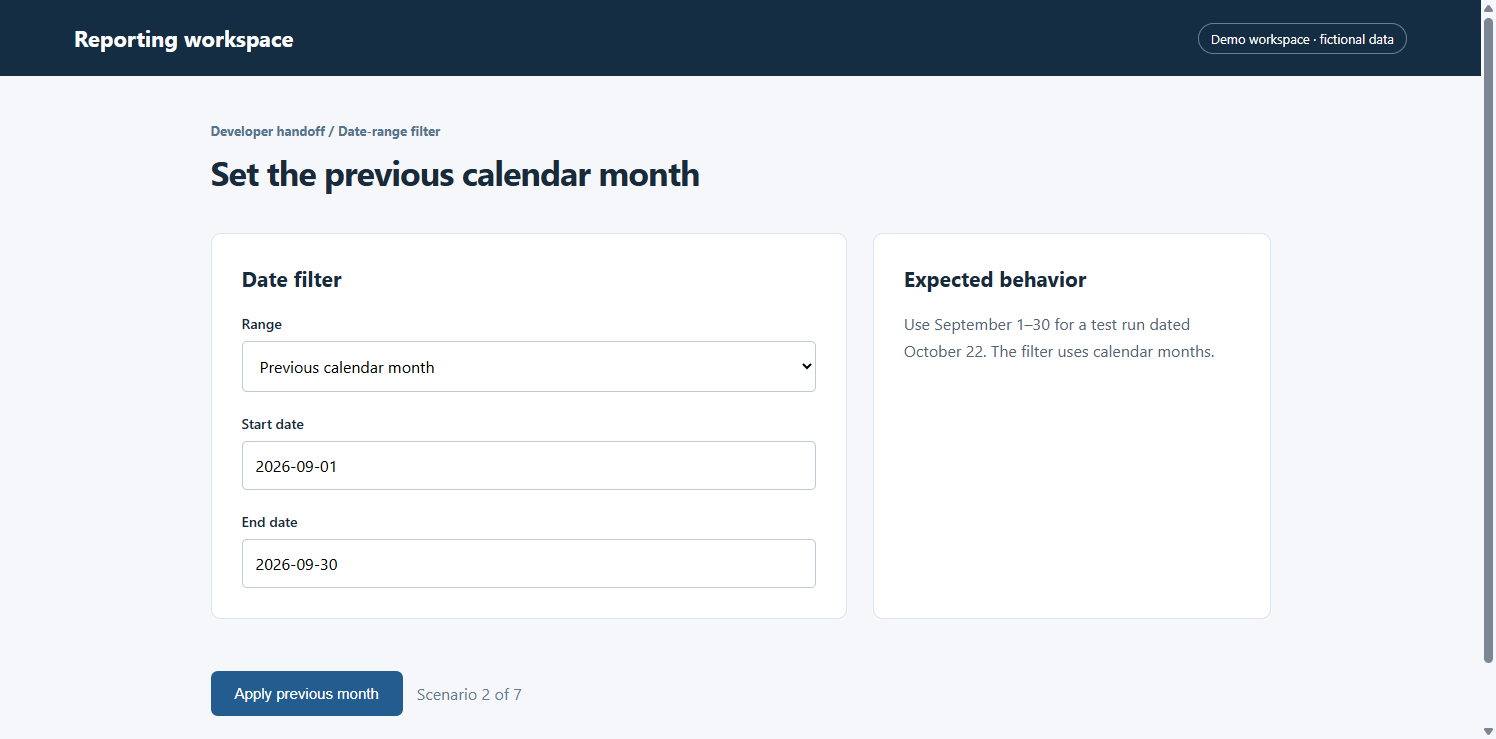
- Set the previous calendar month – Navigate to: Set the previous calendar month
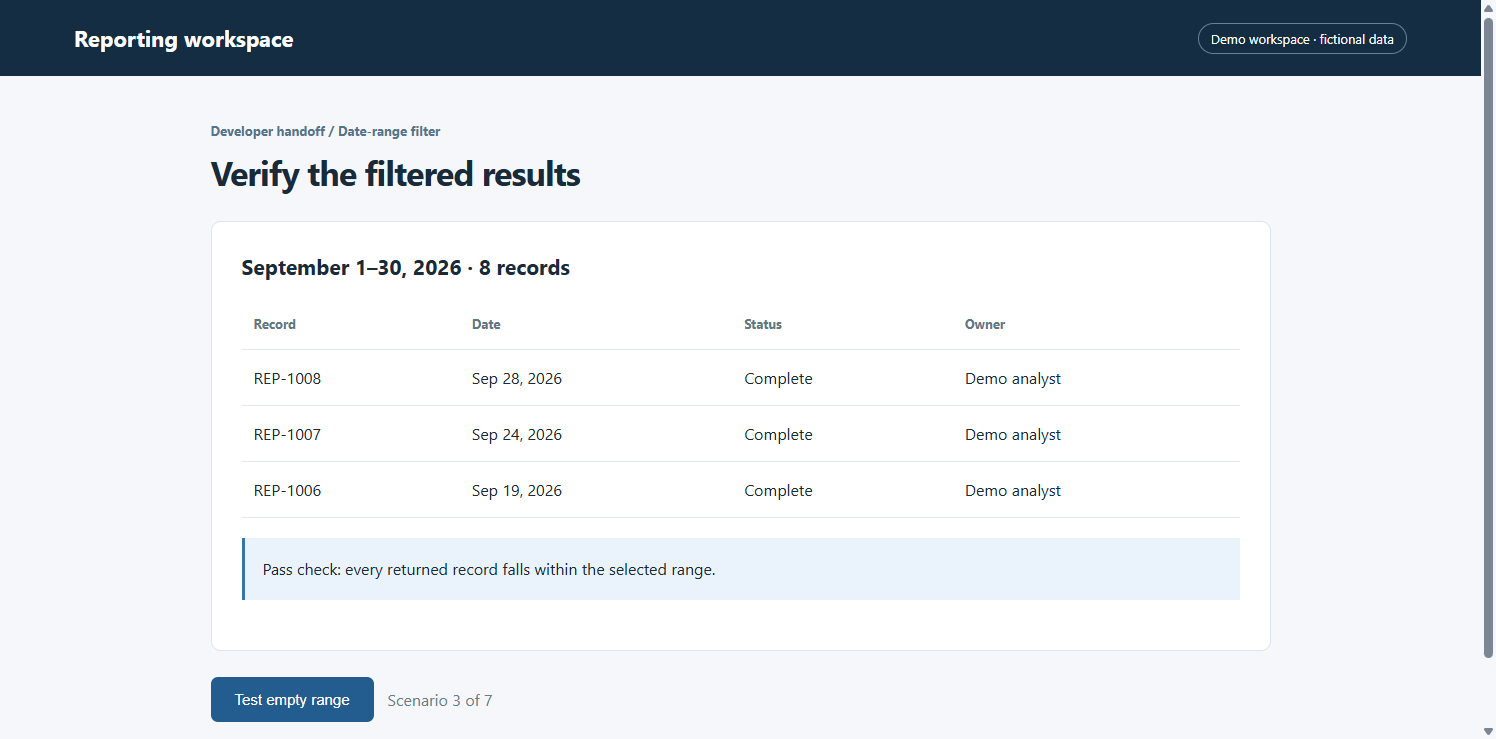
- Verify the filtered results – Navigate to: Verify the filtered results
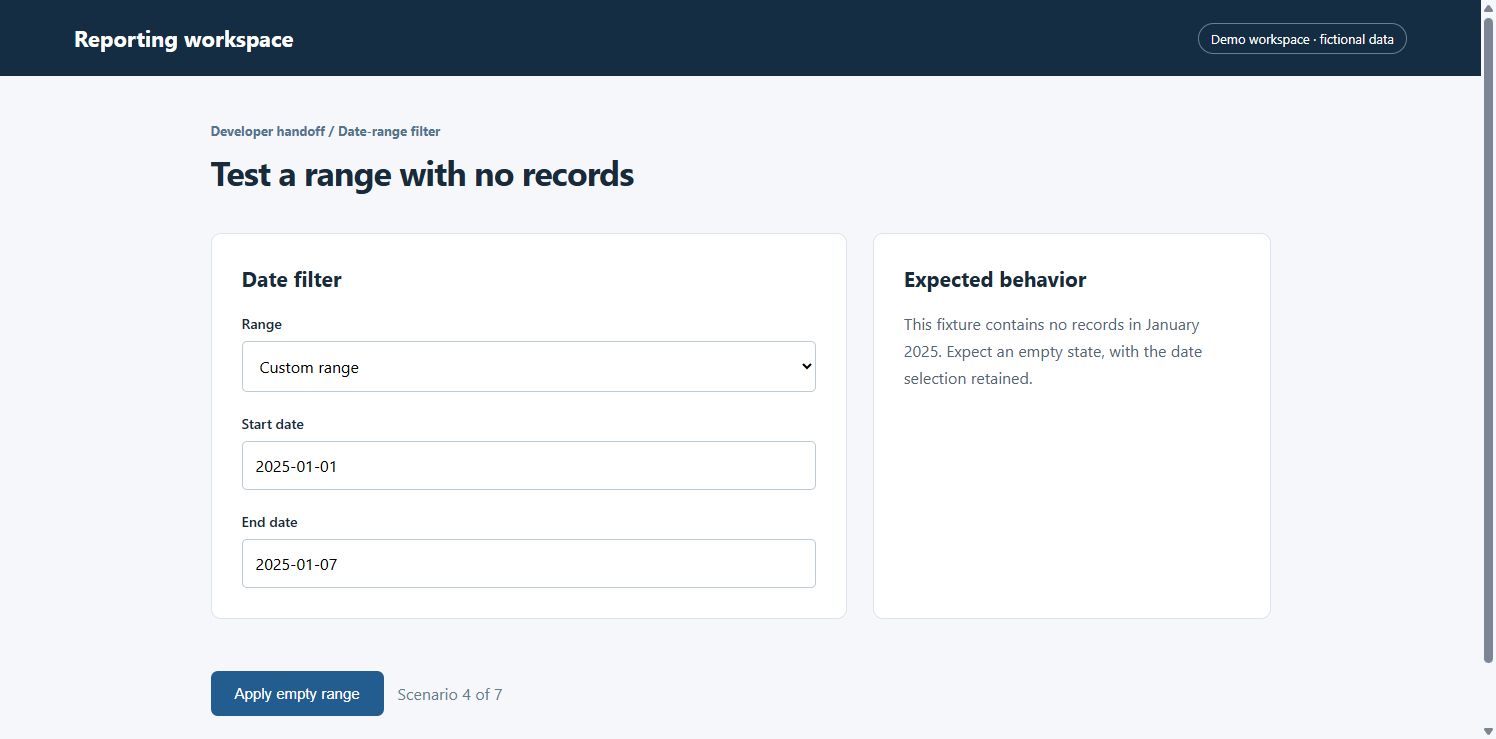
- Test a range with no records – Navigate to: Test a range with no records
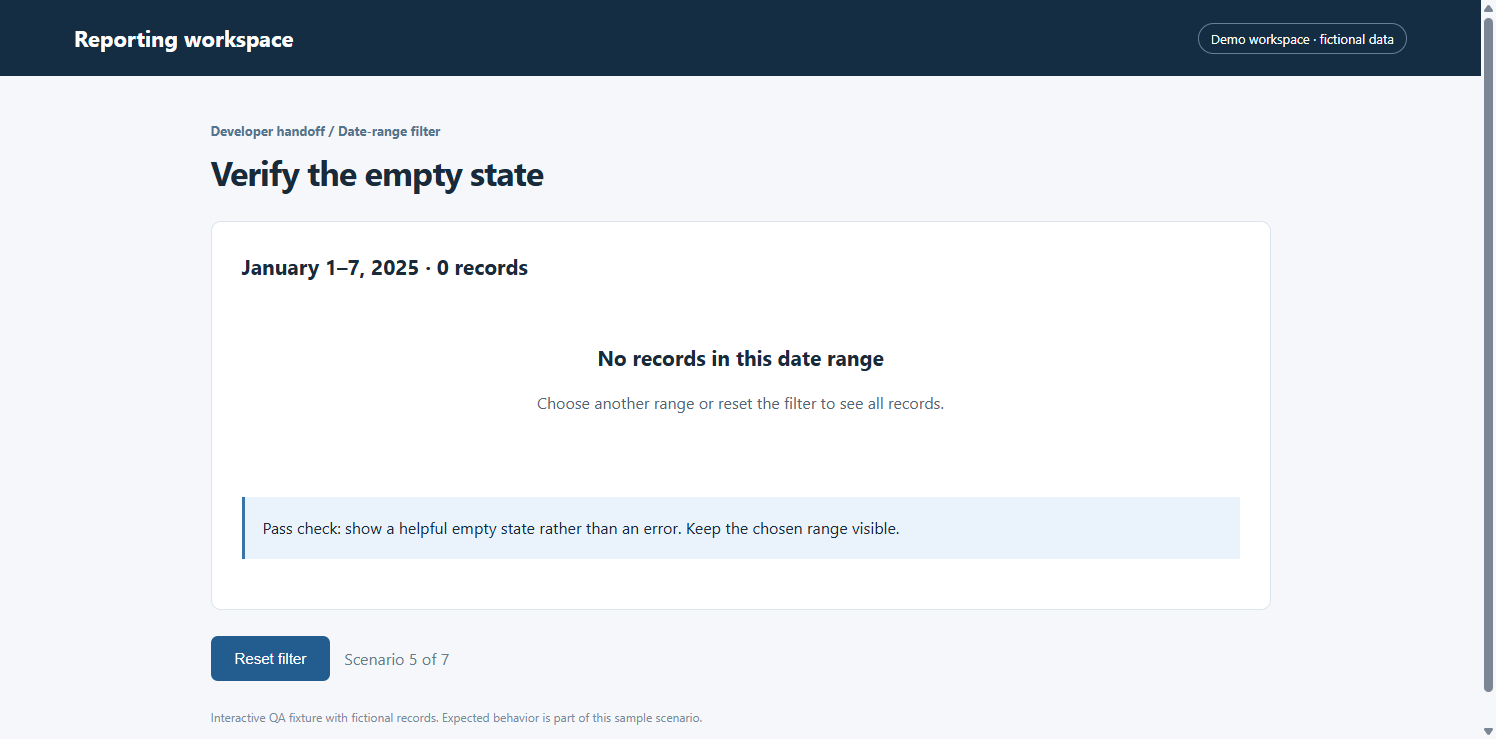
- Verify the empty state – Navigate to: Verify the empty state
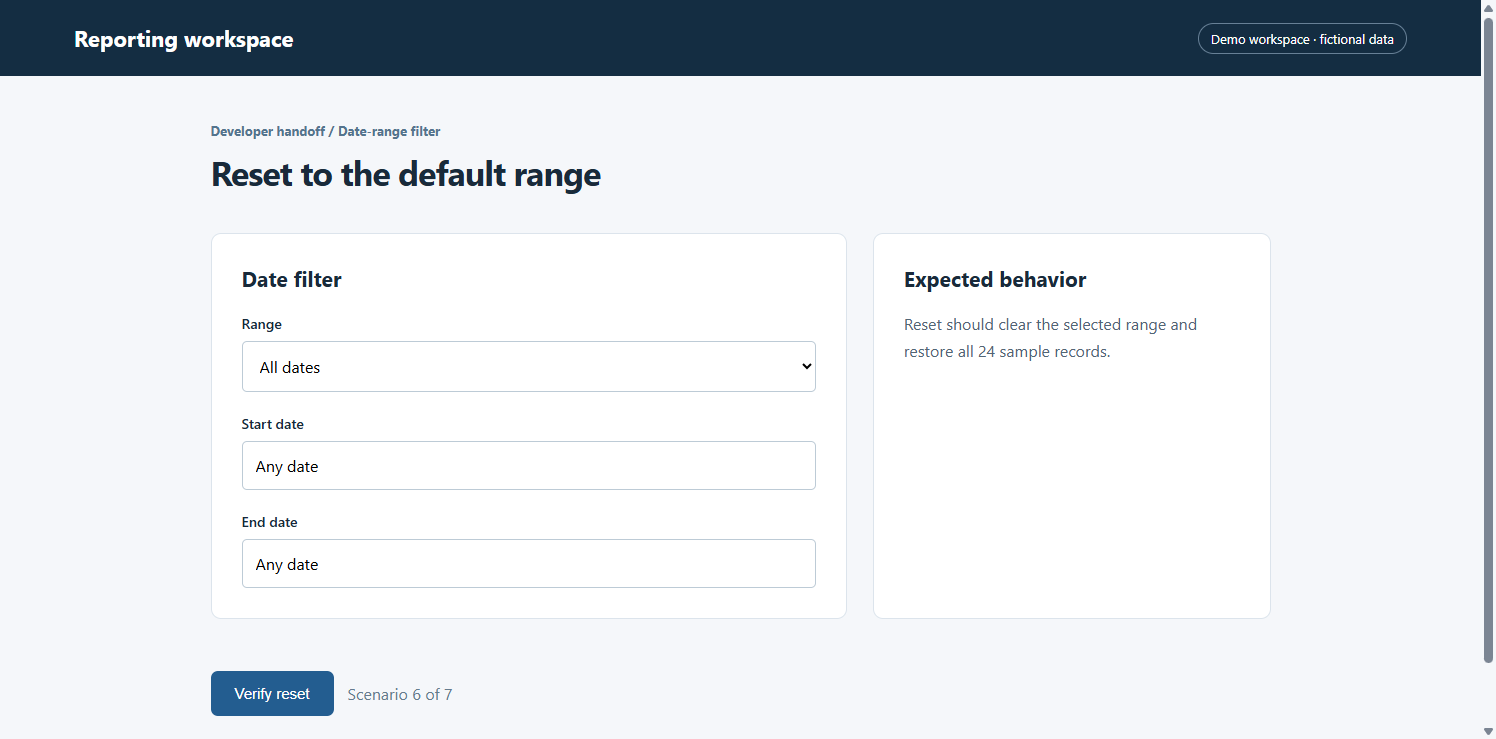
- Reset to the default range – Navigate to: Reset to the default range
- Verify the reset result – Navigate to: Verify the reset result
Step 1 – Open the reports workspace
Properties
Navigate
Navigate to: Open the reports workspace
Step 2 – QA checklist and expected results
Properties
MarkdownDocument
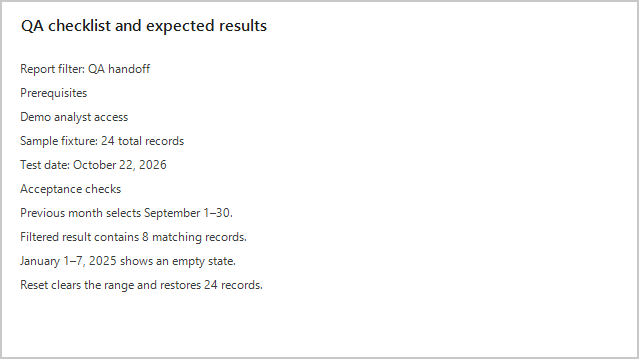
Markdown Document
Report filter: QA handoff
Prerequisites
- Demo analyst access
- Sample fixture: 24 total records
- Test date: October 22, 2026
Acceptance checks
- Previous month selects September 1–30.
- Filtered result contains 8 matching records.
- January 1–7, 2025 shows an empty state.
- Reset clears the range and restores 24 records.
If a check fails
Capture the failing screen and add expected versus actual behavior. Keep this checklist with the screenshots for the next person.
Step 3 – Set the previous calendar month
Properties
Navigate
Navigate to: Set the previous calendar month
Step 4 – Verify the filtered results
Properties
Navigate
Navigate to: Verify the filtered results
Step 5 – Test a range with no records
Properties
Navigate
Navigate to: Test a range with no records
Step 6 – Verify the empty state
Properties
Navigate
Navigate to: Verify the empty state
Step 7 – Reset to the default range
Properties
Navigate
Navigate to: Reset to the default range
Step 8 – Verify the reset result
Properties
Navigate
Navigate to: Verify the reset result
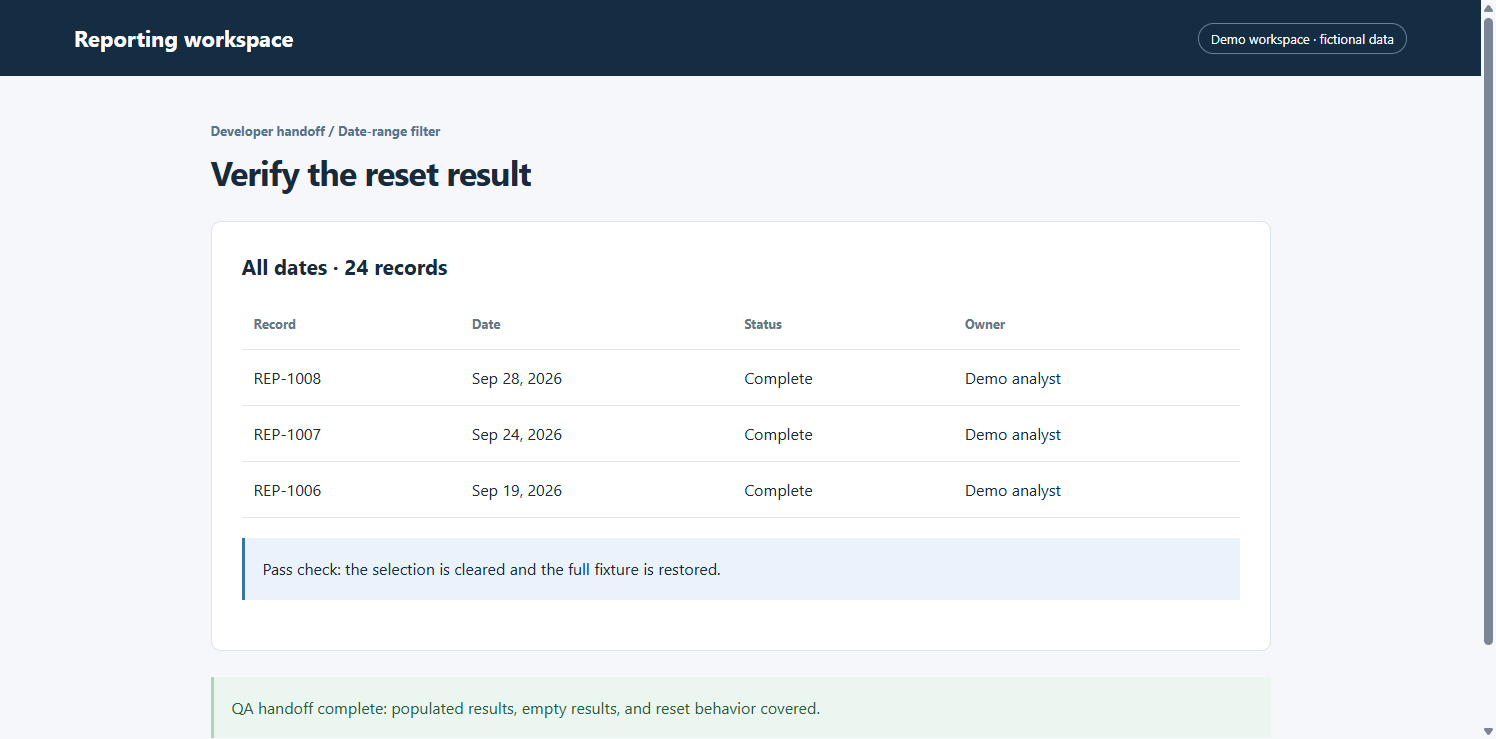
Image Gallery
×
‹
![]() ›
›